Type Khmer on your phone
You can type Khmer just like English once you add the Khmer keyboard. Let’s try one useful word.
ខ្ញុំ
ខ្ញុំ (khnhom) means “I” or “me.”
1. Add the Khmer keyboard
iPhone or iPad
Open Settings → General → Keyboard → Keyboards → Add New Keyboard, then choose Khmer. In any app, tap the globe key to switch keyboards.
Android
Open your keyboard settings (often Settings → System → Keyboard → On-screen keyboard). Add or enable Khmer in your keyboard app, then use its globe or language key to switch.
Windows or Mac
Open your system’s Language / Input Sources settings, add Khmer, then switch input languages using the language menu or keyboard shortcut shown in your settings. The exact menu names vary by OS version.
2. Type ខ្ញុំ on iPhone
On the Khmer keyboard, start with ខ. Some Khmer letters are typed as a subscript, tucked below the first letter. The keyboard makes that easier:
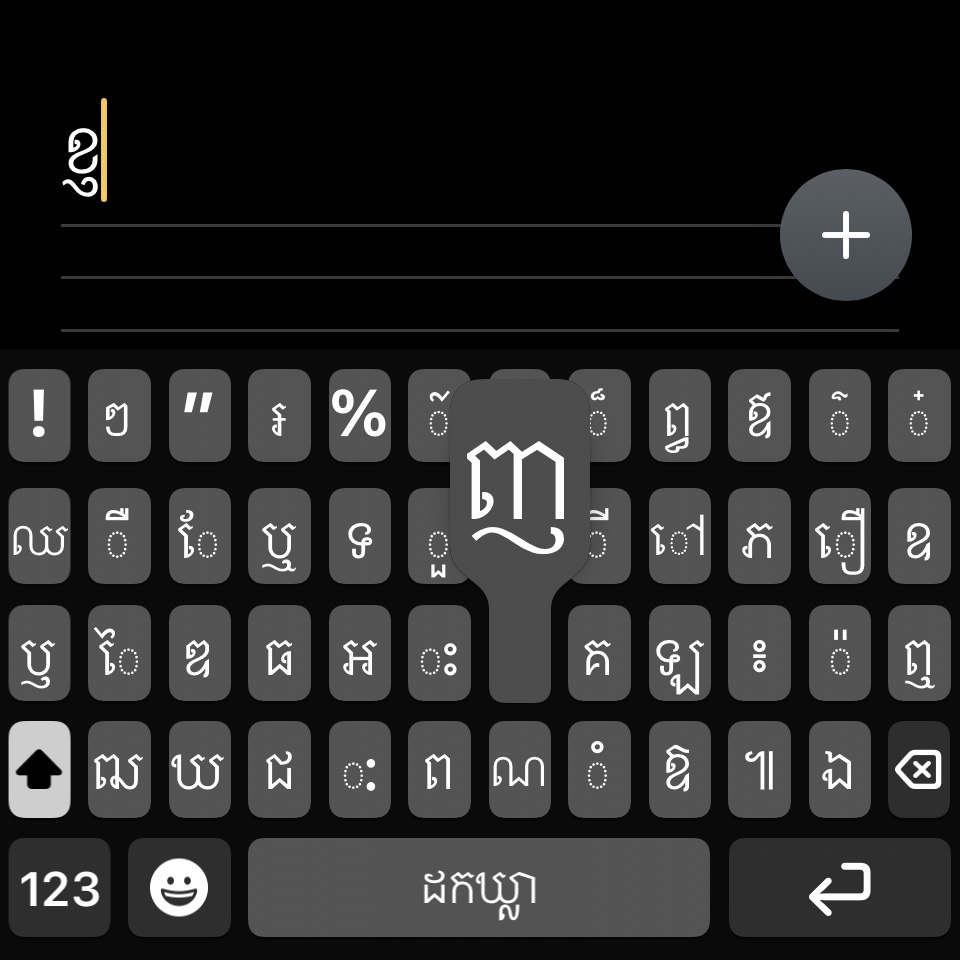
- Type ខ.
- Tap the round + subscript control above the keyboard.
- Choose ញ for the subscript. The keyboard places it beneath ខ.
- Type ុំ to finish the word: ខ្ញុំ.
Keyboard layouts can differ slightly by device and version. If the subscript key looks different, press and hold the relevant Khmer key or check your keyboard’s help.
3. Try it
Aim for ខ្ញុំ.
Nice work. Khmer spelling and keyboard layout take practice. Start with short words, and use your phone’s Khmer voice typing when you want a faster way to enter a longer message.